
FINISH & DOWNLOAD
Turn your character into a clean PNG.
Download the picture you see in the studio, without the controls or selection outlines. Choose the view first, then the background and image size.
Choose Character or Scene
Character view exports the active character. Scene view exports the arranged cast. Switch between them above the canvas before opening the download options. If a character is outside the scene frame, adjust its position or use Fit cast before exporting.
The editor’s face close-up helps with detailed editing; it is not a separate portrait crop setting for export. Downloads use the standard character or scene composition. Check the preview in Download options to see the resulting framing.
Make the background transparent
- Open Download options, the small button beside Download PNG.
- Turn on Transparent background.
- Choose the image size.
- Select Download PNG in the dialog.
The resulting file includes transparent pixels outside your artwork. A photo viewer may display those pixels as white or black; that alone does not mean the background was filled. Place the PNG over a colored background in an image editor to inspect it.
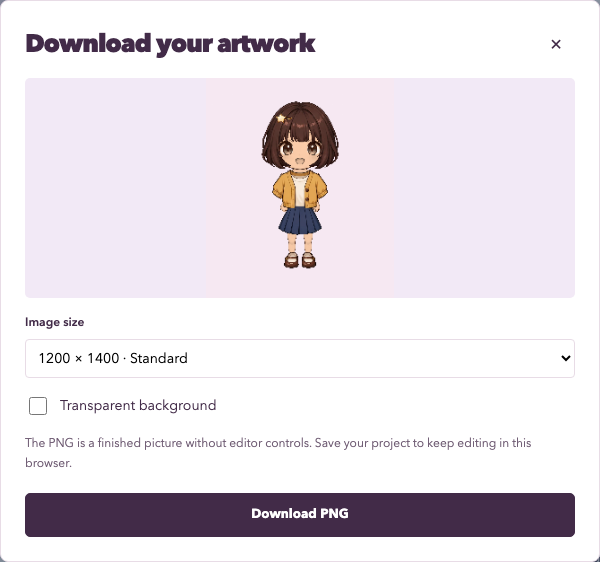
Choose an image size
| Setting | Pixels | A practical use |
|---|---|---|
| Small | 600 × 700 | A compact character reference or smaller download. |
| Standard | 1200 × 1400 | Everyday sharing and most character reference sheets. |
| Large | 1800 × 2100 | More output pixels when arranging artwork elsewhere. |
A larger export gives you more pixels, but cannot invent extra detail in the original illustrated parts or a small imported image. If a device struggles with the largest size, try Standard or Small.
Save and Download PNG do different jobs
Save creates a project copy in My projects on this browser and device. It keeps the clothing, layers, poses, and imported images editable here. The draft also saves automatically when local storage is available.
Download PNG creates one finished picture. You can move that file between devices, but opening it as personal artwork brings it back as a single image layer. It does not recreate the original wardrobe pieces or scene controls.
Check the result before closing
Open the downloaded file and check the face, the edges of the clothing, and any imported artwork. Make sure the intended characters are inside the frame. If you see an unwanted overlap, adjust the layer order or pose and download again.
On mobile, the browser may put the file in Downloads rather than Photos. Read the mobile guide if you cannot locate it. Download names are based on the active character’s name, with unsupported filename characters replaced.