
ON YOUR PHONE
A character workshop that fits your phone.
The same wardrobe and scene tools adapt to a narrow screen. Start with the preview, then move down to the clothing and pose controls.
Find the mobile controls
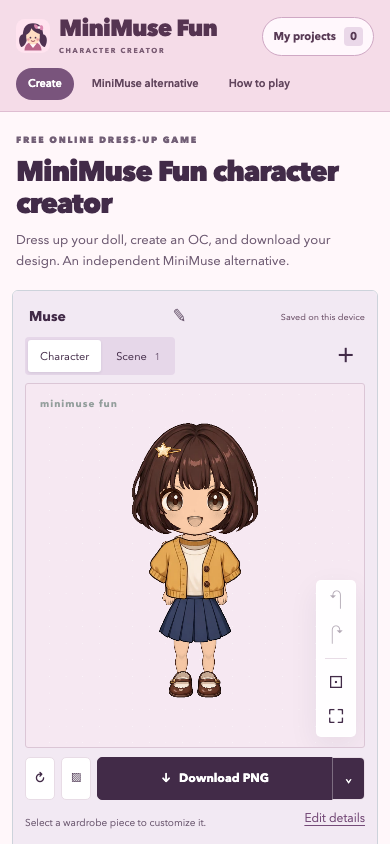
The character preview appears first. Dress up, Looks, Pose, Scene, Pets, and Your art sit below it. The tab row can scroll sideways on a narrow screen. Tap a tab to change the tools without discarding your character. Within Dress up, the category row can scroll sideways on a narrow screen.
Tap a wardrobe item to wear it. Then tap Edit details below the preview to open Piece settings. This panel contains colors, transforms, and Layers. Close it with the × button to return to the wardrobe. The close-up button above the canvas helps you inspect faces and hair.
Make precise changes with touch
Choose a piece before opening its details. Use the sliders for size, rotation, and position, making a small change before checking the preview again. If a slider is disabled, check whether the piece is locked. Colors have both preset swatches and a custom color control.
To arrange a group, switch to Scene view and drag a character. Dragging in that view moves the character rather than scrolling the page. You can also open Character position & size in Scene and use the sliders. Those controls are useful when a small screen makes direct placement difficult.
Keep your picture after a session
Download PNG creates an image on your device. Your browser decides whether it saves immediately, opens a download prompt, or offers a sharing action. If the picture does not appear in your photo library, check the browser’s downloads or the device’s files app.
For a transparent image or a different resolution, open Download options beside Download PNG. Choose a size, select Transparent background if needed, and download. The export guide explains what each option keeps.
Understand local saves
The draft and My projects belong to this browser on this device and website address. A project made in one browser will not automatically appear in another. Private browsing, blocked storage, clearing site data, or browser storage cleanup can affect whether it remains available.
Watch the status above the preview. If it reports a save problem, download the finished picture before closing the page. A PNG keeps the visible artwork but cannot restore separate editable layers.
If the studio feels slow
Close unused tabs, try a smaller PNG export, or reduce the number of imported images and duplicated layers. Use reasonably sized PNG drawings rather than unnecessarily large source images. The editor limits image dimensions before decoding them, but your device still needs memory for the canvas.
Browser download behavior and available memory vary between devices. For help with a specific failure, see Help & troubleshooting.